Free. Import the .apkg, manage topics, filter cards and change settings here.
The complete student guide
Use your deck properly.
Remember more. Apply it in exams.
A practical system for setting up Anki, reviewing Bolt cards, targeting weak areas and turning recall into marks.
Jump straight to what you need
Learn→Recall→Review→Apply
01
First-time setup
From download to first review.
You only need to do this once. Allow about ten minutes and use a laptop or desktop for the cleanest setup.
Anki in plain English
One collection. Four ways to access it.
Anki schedules each card for the moment it is becoming useful to see again. The desktop app is where you import and manage a Bolt deck; AnkiWeb carries the synced collection; the phone apps let you review anywhere.
Free sync account and browser access. It connects your devices; it is not the main setup app.
The official paid iOS app. Use the same AnkiWeb account to download your collection.
The established Android companion. Sign in to the same AnkiWeb account before reviewing.
Install the official Anki app
Download Anki on your computer from the official site. Avoid similarly named copycat apps.
Create a free AnkiWeb account
This is what lets your reviews and progress sync between your computer and phone.
Import the Bolt file
Open the .apkg file once. Anki will add the deck, its card styles and its diagrams automatically.
Sync before adding your phone
Sign in on the computer and press Sync. On your first sync, choose Upload to AnkiWeb so the newly imported deck is sent to your account.
Activate only what you have learned
Keep future topics suspended. Unsuspend cards as your class reaches each topic, so reviews stay useful and manageable.
01
Import on desktop
Open Anki, choose Import File, then select the Bolt .apkg. Wait for the import summary before closing Anki.
02
Activate the topic you know
Open Browse, choose a learned topic, select its cards, then use Cards → Toggle Suspend. Leave future topics suspended.
Official Anki Browse instructions ↗03
Sync in the correct direction
After importing on the computer, choose Upload to AnkiWeb. Then sign in on your other device and choose Download from AnkiWeb. After that, ordinary syncs merge your review progress.
Official Anki sync instructions ↗The walkthroughs match current Anki desktop structure. Small wording or button-position changes between versions do not change the steps.
What the numbers mean
Cards move through three useful states.
A card you have activated but have not answered. Every new card creates future reviews, so introduce them steadily.
A new or forgotten card returning after a short step. Clear these before ending the session.
A learned card due again according to your history. These come before adding more new material.
Setup complete
Your deck is ready.
Study five cards now. The first real review will make the rest of this guide easier to understand.
Recommended Anki settingsA safe starter preset and workload guidance+
Recommended Anki settings
A calm starting preset.
This setup keeps due work visible, protects you from adding new material when reviews are already waiting, and gives FSRS room to learn from your actual memory.
Open it: Decks → gear icon → Options
Bolt starter presetUse the same preset across the Bolt parent deck and its topic subdecks.
RecommendedFSRSModern scheduling
Desired retentionBalanced recall and workload
90%New cards / dayTotal for the subject deck; begin lower when running several decks
10–20Maximum reviews / dayKeep due cards visible; use the backlog plan if needed
9999New cards ignore review limitDo not add new work through a backlog
OffNew / review orderProtect existing memory first
Reviews firstBury siblingsNew, review and interday learning siblings
All onLearning and relearning stepsKeep them short and under one day
DefaultDo not tune every number.
Keep maximum interval and the remaining advanced options at their defaults. Do not copy somebody else's FSRS parameters.
Optimise about monthly.
Use Anki's Optimise button once there is enough genuine review history. There is no benefit in pressing it every day.
Do not reschedule everything.
Leave Reschedule cards on change off at first; turning it on can suddenly make a large number of cards due.
Settings guidance follows the current official Anki FSRS and deck-options guidance.
02
How to answer
Attempt first. Reveal last.
The small pause before revealing is where the learning happens. Say, write or picture the answer before you look.
01AttemptRetrieve without help
→
02HintOnly if genuinely stuck
→
03Attempt againUse the smallest cue
→
04RevealCompare point by point
Worked card example
One card, three deliberate stages.
Marks tell you the required depth. The hint nudges without giving the answer. On the back, compare each creditworthy point rather than asking whether you were “basically right”.
- Mark allocation sets the number of points to recall.
- Bold phrases show especially valuable scoring language.
- Explanation teaches why the answer works.
- Common Mistake shows how marks are often lost.

03
Inside your deck
Different cards train different exam demands.
Every subject shares the same exam-focused core, then adds the card types that genuinely suit that subject.
Biology
Animal cell ultrastructure.
Retrieve one precise structure while the complete cell remains visible.
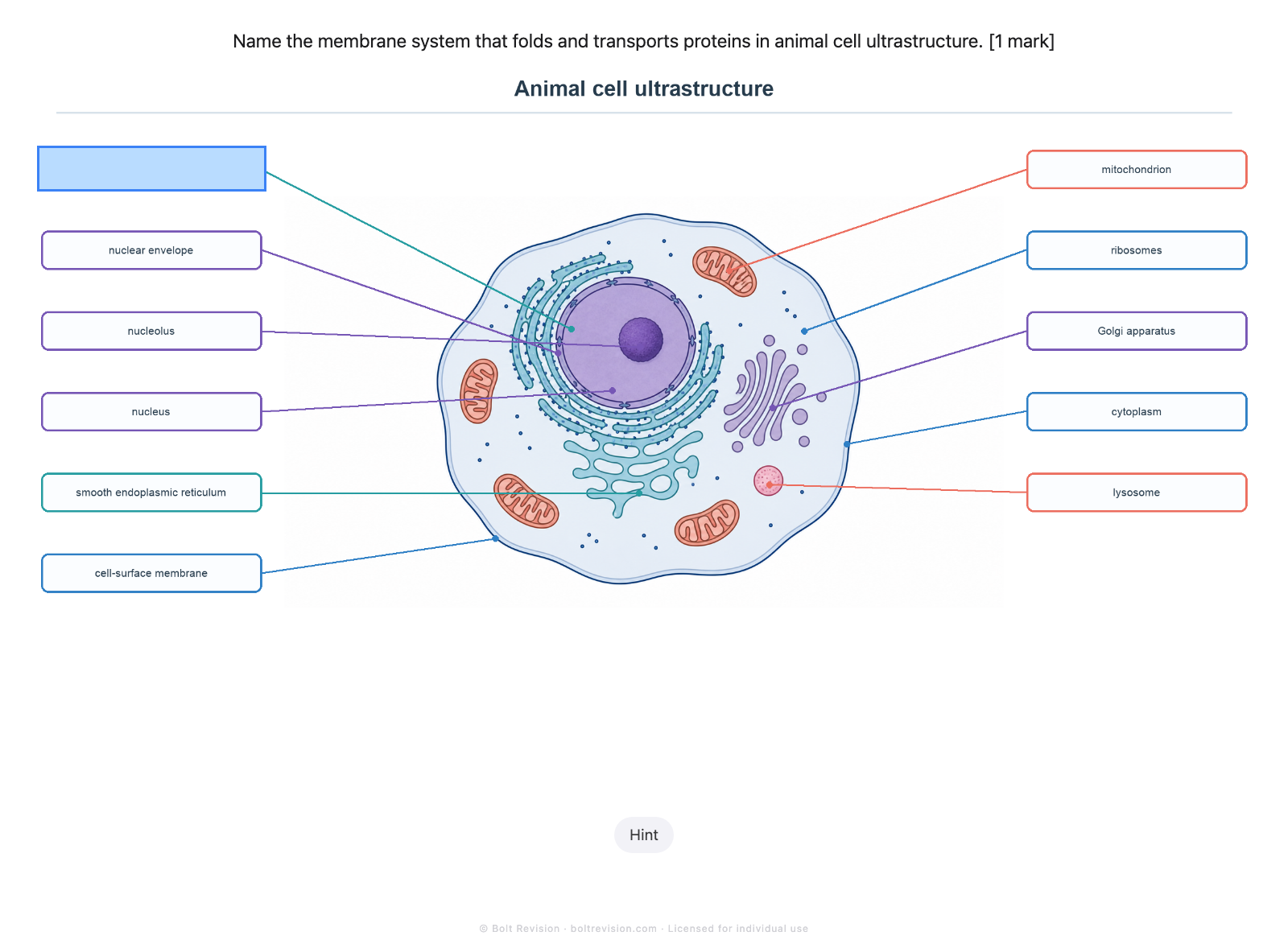
- AttemptName the organelle before looking.
- CheckUse the full accepted term.
- ExtendState its function from memory.
Other card types
Open only the guidance you need.
CalculationsEquation → working → units → check+
Choose and rearrange the relationship before substituting. Show values and units, check conversions and significant figures, then solve a fresh example after an error.
PracticalsMethod → variables → evidence → evaluation+
Picture the apparatus and order, name the variables and measurements, then separate errors, limitations and improvements before linking the conclusion to the evidence.
Graphs & dataAxes → pattern → meaning+
Read axes, units and scale first. Describe the pattern using data, then interpret gradients, areas or anomalies using the evidence in front of you.
Processes & mechanismsStage → direction → complete chain+
Recall one stage at a time. Redraw arrows, charges and intermediates for mechanisms; connect cause, change and consequence for processes; then reproduce the whole chain unaided.
Application & command wordsIdentify the principle → answer the actual task+
Strip away the unfamiliar context, identify the familiar principle and use details from the question. State or name briefly; describe what happens; explain why; compare in pairs; evaluate with evidence and a justified judgement.
What is built into a Bolt deck?Exam-board specificity, credited answers and active practice+
Each deck is organised around its exact qualification and specification, with original exam-style questions, visible marks, point-by-point answers, creditworthy phrases, calculations, practicals, graphs, data, application, processes, mechanisms, Visual Recall, Smart Hints and targeted feedback where they genuinely help.
04
Smart Filtering
Turn one large deck into a focused session.
Bolt's tags let you target a topic, question type or skill without damaging the original deck structure.
Choose one layer at a time
TopicTopic 4
Card typePractical
Exam skillExplain
FeatureCommon Mistake
Focused review
Topic 4 practical explanations
Matching cards are gathered temporarily and return to their original deck afterwards. Your answers update their schedule unless you deliberately use preview mode.
Study
Your focused session
Practicals · Explain
Focus on explain questions using practical cards from your current topic.
Current topicPracticalsExplain
- Open Browse.
- Select the relevant topic or subdeck.
- Choose matching Bolt tags.
- Create a Filtered Deck and study.
Finish well: answer one practical exam question from memory.
Keep Reschedule cards based on my answers on for a real review session. Turn it off only when you intentionally want a no-schedule preview.Filtered-deck behaviour follows the current official Anki filtered-deck guidance.
TopicThe part of the specification
SubtopicThe precise area to target
Card typeRecall, calculation, practical, graph, data, application, process, mechanism or IO
Exam skillState, describe, explain, suggest, calculate, evaluate and other board-relevant commands
Special featureHint, Explanation or Common Mistake
Tier / routeFoundation, Higher, Core or Extended where relevant
05
The revision system
Learn → Recall → Review → Apply.
Bolt is the active-recall and spaced-review part of your revision. The efficient way to use it is to make each session purposeful—not simply chase a card count.
A strong everyday session
- 2 minSync and choose the scope
One subject or current topic. Close notes and distractions.
- 15 minComplete due reviews first
These are the cards Anki believes are closest to being forgotten.
- 5 minAdd a small number of new cards
Only from material you have already learned in class or independently.
- 3 minRecord one weakness
Choose a calculation, process or exam skill to practise outside Anki.
Begin with 10–20 new cards.
Use 10 for a cautious start or several subjects. Move towards 15–20 only when you clear every due review comfortably; increase by five after a stable week.
Protect the memory you already built.
New cards create future reviews. If you are short on time, complete due cards and introduce nothing new.
Do not turn recall into rereading.
Commit to an answer, use the Hint only if needed, then reveal and compare each marking point.
Choose the fastest valid answer method
Say simple answers. Write what the exam makes you construct.
Definitions, one-mark facts, simple comparisons and short processes.
Calculations, equations, graphs, mechanisms, genetic crosses and multi-mark explanations.
Visual Recall, apparatus, structures and ordered diagram features.
Typing every answer usually slows the session without improving recall.
Learn
Understand the lesson, notes or worked example first.
→
Recall
Unsuspend that topic and answer without looking.
→
Review
Let Anki bring cards back as memory weakens.
→
Apply
Use questions and papers under exam conditions.
Once or twice a week · 30–45 min
The targeted session
- Choose one weakness from lessons or questions.
- Use Smart Filtering to isolate it.
- Mix recall with calculation, data or practical cards.
- Finish with a few exam questions.
Near exams · timed
The exam session
- Complete a timed paper or section.
- Mark it strictly.
- Diagnose the reason for each lost mark.
- Feed the weakness back into Bolt.
Plans for lessons, tests, mocks and each scienceOpen when you need a situation-specific plan+
Use the right workflow for the moment
Six common situations, six clear next moves.
Learn, then activate.
Check you understand the content, unsuspend only that subtopic, introduce a small batch and finish any Learning cards.
Mix recall with questions.
Clear due cards, filter the test topics, then answer short exam questions without notes. Do not try to learn the whole topic the night before.
Widen the mix.
Keep daily reviews, rotate targeted weak-area sessions and add timed paper sections. Reduce new cards if reviews compete with paper practice.
Turn errors into a plan.
Classify each lost mark, filter the matching topic or skill, repair it, then retry a different question that tests the same idea.
Maintain, target, apply.
Use Anki to preserve recall; spend the larger block on timed papers, marking and correction. Avoid a flood of unseen cards unless the topic is essential.
Stabilise before expanding.
Sync, set new cards to zero, clear due work in manageable blocks and restart new material only when the queue is under control.
Use the deck differently by subject
The core routine stays the same. The active work changes.
- Write every calculation step and unit.
- For graphs, state what the gradient or area represents.
- After a wrong card, solve a fresh numerical example.
- Draw mechanisms rather than mentally recognising them.
- Recall reagents, conditions and observations as one set.
- Write practical sequences in operational order.
- Build multi-mark answers point by point.
- Say processes in sequence, then explain why each stage matters.
- Use application and data cards before moving to paper questions.
06
Exam application
Bolt supports past papers. It does not replace them.
Cards strengthen the knowledge and skills you need. Papers test whether you can select and apply them under pressure.
Complete a question set, paper section or full mock.
Use the official mark scheme honestly.
Knowledge, wording, application, maths or timing?
Filter the matching Bolt topic and card type.
Return to a fresh question, then check improvement.
Why you lost the markWhat to do next
I did not know the contentReview the topic cards; use Again honestly.
I knew it but used vague wordingStudy mark-by-mark answers and bold credit phrases.
I could not apply itFilter Application, Data or Graph cards; then retry a new question.
My calculation failedFind the step: equation, rearrangement, substitution, units or rounding.
My practical answer was genericFilter Practical cards for that topic and practise named variables and measurements.
I ran out of timePractise timed sections; do not solve a timing issue with more flashcards.
How do I know I am becoming exam-ready? +
Confidence should come from evidence, not from recognising familiar cards.
- You clear due reviews without rushing or hiding mistakes.
- You can reproduce calculations, mechanisms, processes and diagrams on paper.
- You correct a weakness, then answer a fresh question testing the same idea.
- Your accuracy holds when topics are mixed and the work is timed.
- You can explain why a lost mark happened and what you changed afterwards.
07
Keep progress safe
Sync with one clear direction.
Most sync problems come from choosing the wrong direction on a full upload or download.
Computer→AnkiWeb
Upload to AnkiWeb
Choose this when the computer contains the correct, newly imported or most up-to-date collection.
AnkiWeb→Device
Download from AnkiWeb
Choose this when AnkiWeb contains the correct collection and this device needs to receive it.
Deck updates
Protect your progress before importing an update.
Sync first, read the instructions supplied with that specific update, and do not manually delete the existing deck unless Bolt explicitly tells you to. Update behaviour depends on how that release was prepared, so never guess from a previous deck.
Start from the trusted copy.
Sync the old device first. Install the official app on the new device, sign in to the same AnkiWeb account and download the complete collection.
Stop and compare timestamps.
Choose the side containing the newest valid reviews. If unsure, cancel, make a backup on desktop and confirm the correct collection before replacing anything.
Keep a recovery route.
Anki Desktop creates automatic backups. Before a major import or update, use File → Create Backup and finish a successful sync.
08
Backlog rescue
Missed a week? Do not restart.
A backlog is a queue, not a verdict. Shrink it without creating hundreds of new cards.
Stop new cards
Review for a short fixed block. Grade honestly.
Clear in chunks
Two or three calm sessions beat one exhausting marathon.
Restart slowly
Add new cards below the rate you can comfortably review.
Do
- Prioritise due reviews.
- Use short, repeatable sessions.
- Temporarily lower new cards.
- Keep syncing.
Avoid
- Deleting your deck.
- Pressing Easy to escape cards.
- Adding a whole new topic.
- Doing three hours once, then disappearing.
09
Optional add-ons
Keep Anki simple. Add only what solves a real problem.
Bolt already works with current Anki. These desktop add-ons can improve consistency, focus or workload control—but none is required.
ConsistencyBest starting choice
Review Heatmap
Shows your review activity as a calendar. Useful when seeing steady work motivates you; skip it if streaks create pressure.
1771074083AnkiWeb listing ↗FocusFor desktop reviews
No Distractions Full Screen
Removes menu clutter during reviews and keeps the card central. Useful if other controls pull your attention away.
1370336700AnkiWeb listing ↗WorkloadAdvanced only
FSRS Helper
Adds tools such as load balancing and easier days. Use it only after FSRS is working normally; do not postpone or advance reviews casually.
759844606AnkiWeb listing ↗01
Third-party and desktop only. Add-ons do not install into AnkiWeb, AnkiMobile or AnkiDroid.
02
Install one at a time. Restart Anki and complete a few reviews before adding another.
03
Check compatibility. Read the supported-version line on the AnkiWeb listing before installing.
How to install an add-on +
- In desktop Anki, open Tools → Add-ons.
- Select Get Add-ons.
- Paste the code shown on the add-on's official AnkiWeb page.
- Restart Anki and check that reviews still behave normally.
What should I avoid? +
Avoid old Image Occlusion add-ons, replacement schedulers, automatic answer revealers and cosmetic bundles that change several parts of Anki at once. Bolt uses native Image Occlusion and current FSRS. If Anki behaves strangely after an update, disable the newest add-on first and restart.
Read Anki's current guidance before installing: official add-ons manual ↗
10
Quick help
Fix the common problems first.
I imported the deck but cannot see every card. +
Some cards may be suspended intentionally so you do not study topics before learning them. Open Browse, select the topic and check the suspended-card state.
The deck file will not import. +
Make sure the download finished and still ends in .apkg. Import it through current desktop Anki rather than trying to open its contents. If it still fails, note the exact error and download a fresh copy from your original delivery link.
Images or diagrams are missing. +
Leave Anki open until media syncing finishes, then sync again on the affected device. On desktop, use Tools → Check Media. Do not rename files inside the deck package.
The Hint button or Visual Recall mask does not work. +
Update the official app, sync completely and check the same card on desktop Anki. If only one card is affected, record the deck, subtopic and exact question and send a screenshot.
My phone and computer show different progress. +
Check both devices use the same AnkiWeb account. Sync the device with the correct, newest progress first; then sync the other device and choose the direction carefully if prompted.
There are too many reviews. +
Pause new cards and use the backlog rescue plan above. Do not repeatedly reschedule everything or grade incorrect answers as Good.
A diagram or mask looks wrong. +
Sync and check the card on desktop Anki. Record the deck name, topic and exact card wording, then send that information with a screenshot so the right card can be traced.
Should I change FSRS settings? +
Start with the defaults and around 90% desired retention. Optimise only after you have a meaningful review history. Higher retention creates more reviews, so change it deliberately.
I accidentally deleted cards or a deck. +
Stop syncing from the affected device. On desktop, open File → Switch Profile, choose your profile and use Open Backup. Restore the newest backup from before the deletion, check it, then upload that correct collection to AnkiWeb.
I forgot my AnkiWeb password. +
Use the password-reset option on AnkiWeb and confirm you are signing into the same email account used on your other device. Creating a second account will not contain your existing collection.
An update created duplicates or changed something unexpectedly. +
Do not keep importing or delete large groups of cards. Stop, keep the current backup, note the update filename and the affected deck, and ask for deck-specific support so your scheduling can be protected.
Mini glossary
The Anki words worth knowing.
- Collection
- All decks, cards, media and review history in one Anki profile.
- Note
- The stored information. One note can generate more than one card.
- Card
- One question or prompt that Anki schedules.
- Deck / subdeck
- The subject structure in which cards live.
- Tag
- A label used to find and filter cards without moving them.
- Suspend
- Temporarily stop a card from appearing in study sessions.
- Filtered deck
- A temporary session made from matching cards; the originals return home afterwards.
- FSRS
- The scheduler that estimates when each learned card should return.
- Due
- Ready to be reviewed now according to its schedule.
- Sync
- Send collection changes between a device and AnkiWeb.
Bolt in 60 seconds
Learn it. Retrieve it. Review it. Use it in a paper.
- Install desktop Anki and create an AnkiWeb account.
- Import the Bolt
.apkgon your computer. - Upload the complete collection to AnkiWeb, then download it to your phone.
- Unsuspend only the topics you have learned.
- Complete due reviews before adding new cards.
- Attempt → use Hint if stuck → attempt again → reveal.
- Compare answers mark by mark and rate your recall honestly.
- Use Smart Filtering for one deliberate weakness.
- Apply the knowledge in exam questions and past papers.
- Feed each lost mark back into the next focused session.